How to add text, a date and initials
to a PDF on iPhone.
To add text, a date or your initials to a PDF on iPhone, open it in eSign and tap +. Choose Text to type anywhere on the page, Form field > Date for a date picker, or Form field > Initials for your initials. Drag each one into place, then share the PDF.
Updated By Alina Bohuslavska, maker of eSign

In eSign, tap + and choose Text, or Form field > Date or Initials. Type your text, pick a date and format, or choose your saved initials, then drag it into place and share the PDF. Apple's built-in Markup can add a text box too, but it has no date picker.
Add text, a date and initials in five steps
- 1
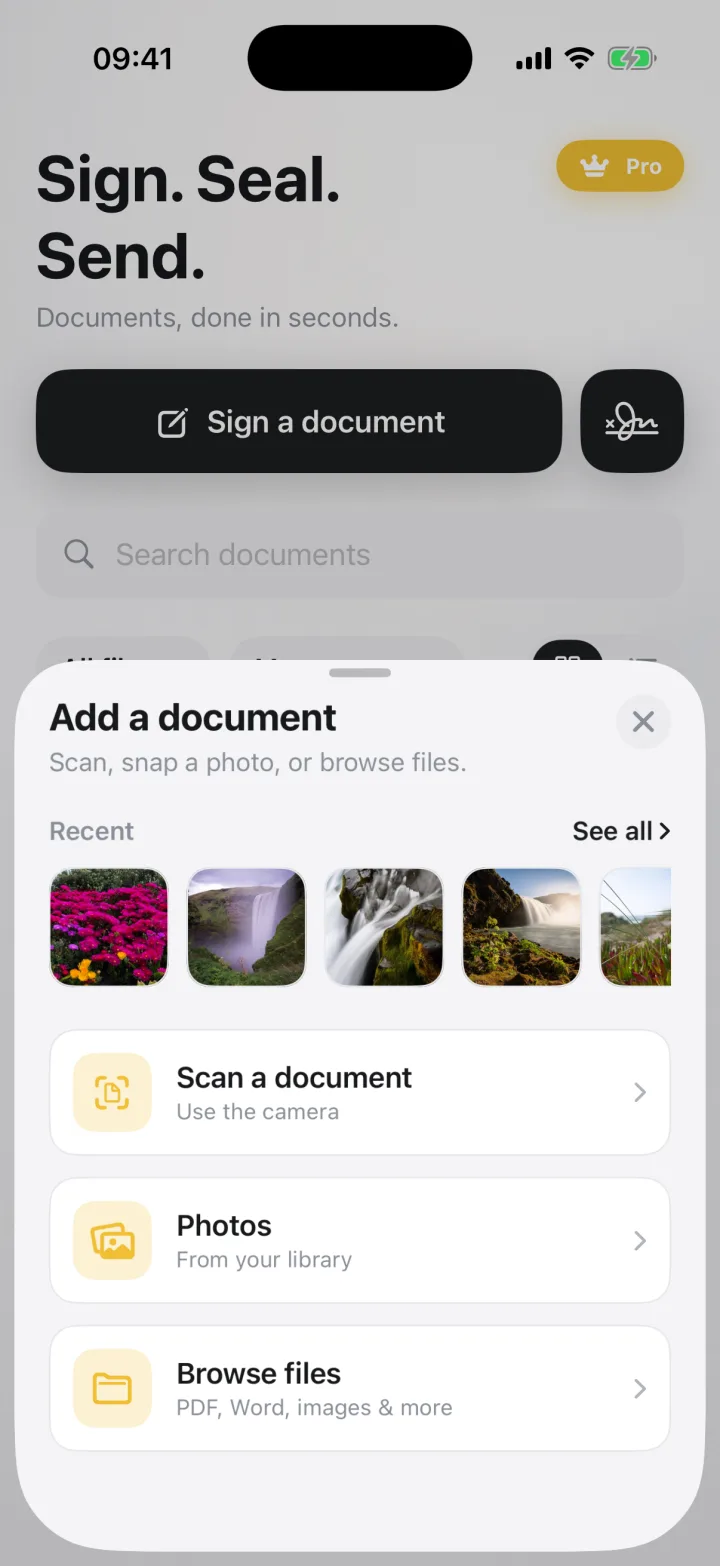
Open the PDF
Tap Sign a document and pick the PDF from Files, a photo, or a scan from the camera. You can also tap Share in Mail or Files and choose eSign.
- 2
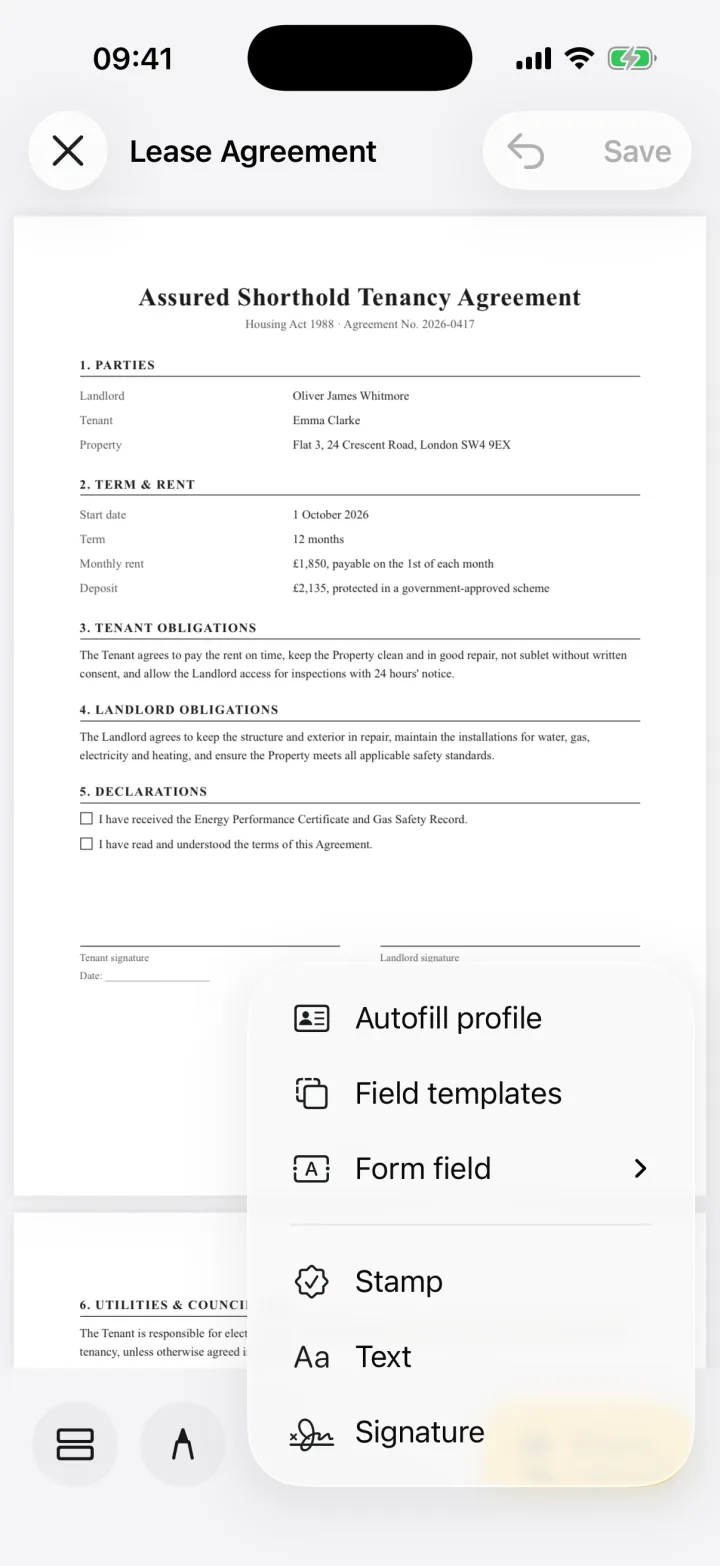
Add text anywhere
Tap + and choose Text. Type what you need, then pick the font, bold or italic, a size from 6 to 96 pt and a color. Tap Add and drag the text onto the line. Tap it again, or tap the pencil, to edit it.
- 3
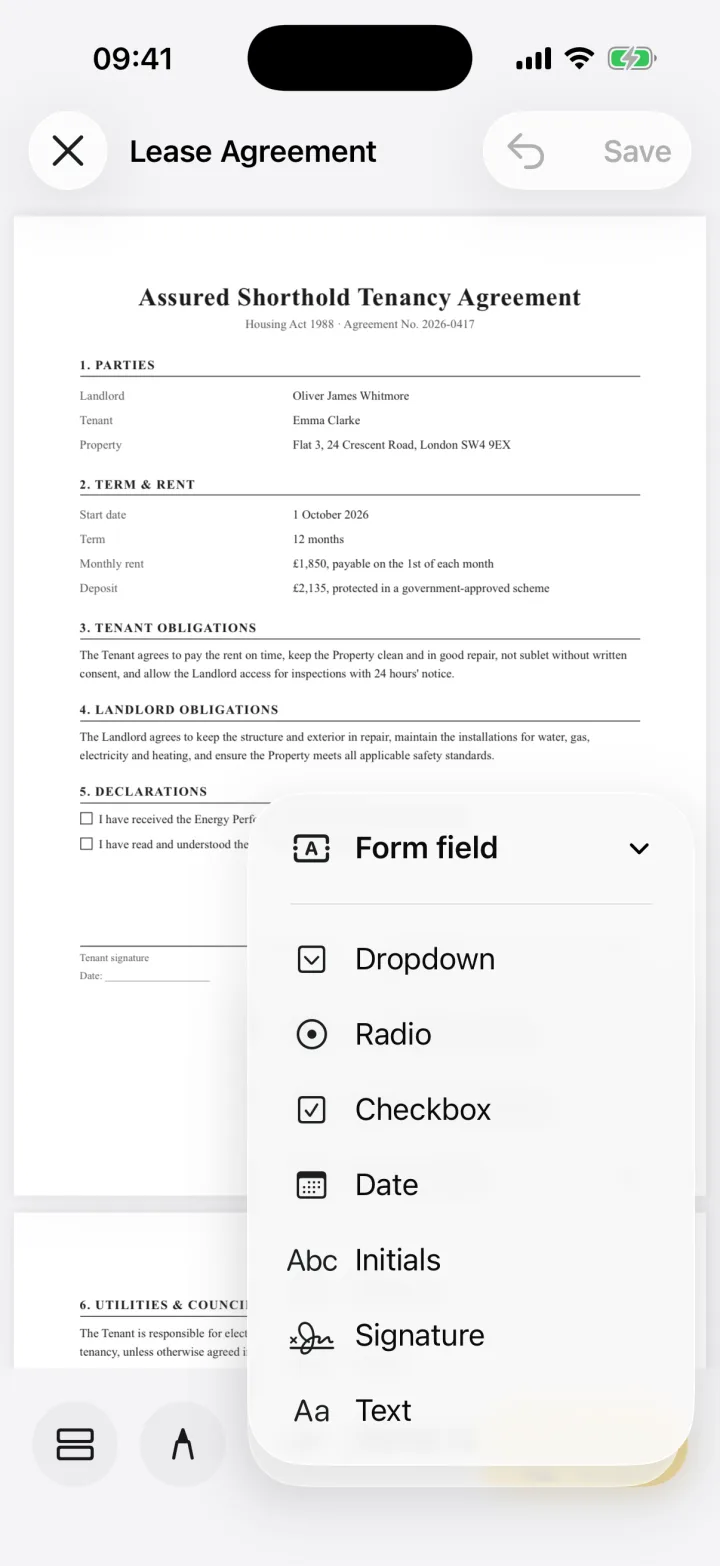
Add the date
Tap +, then Form field > Date, and drag the field next to Date on the page. Tap it, pick a date, choose Short, Medium or Long format and tap Use this date, then Done.
- 4
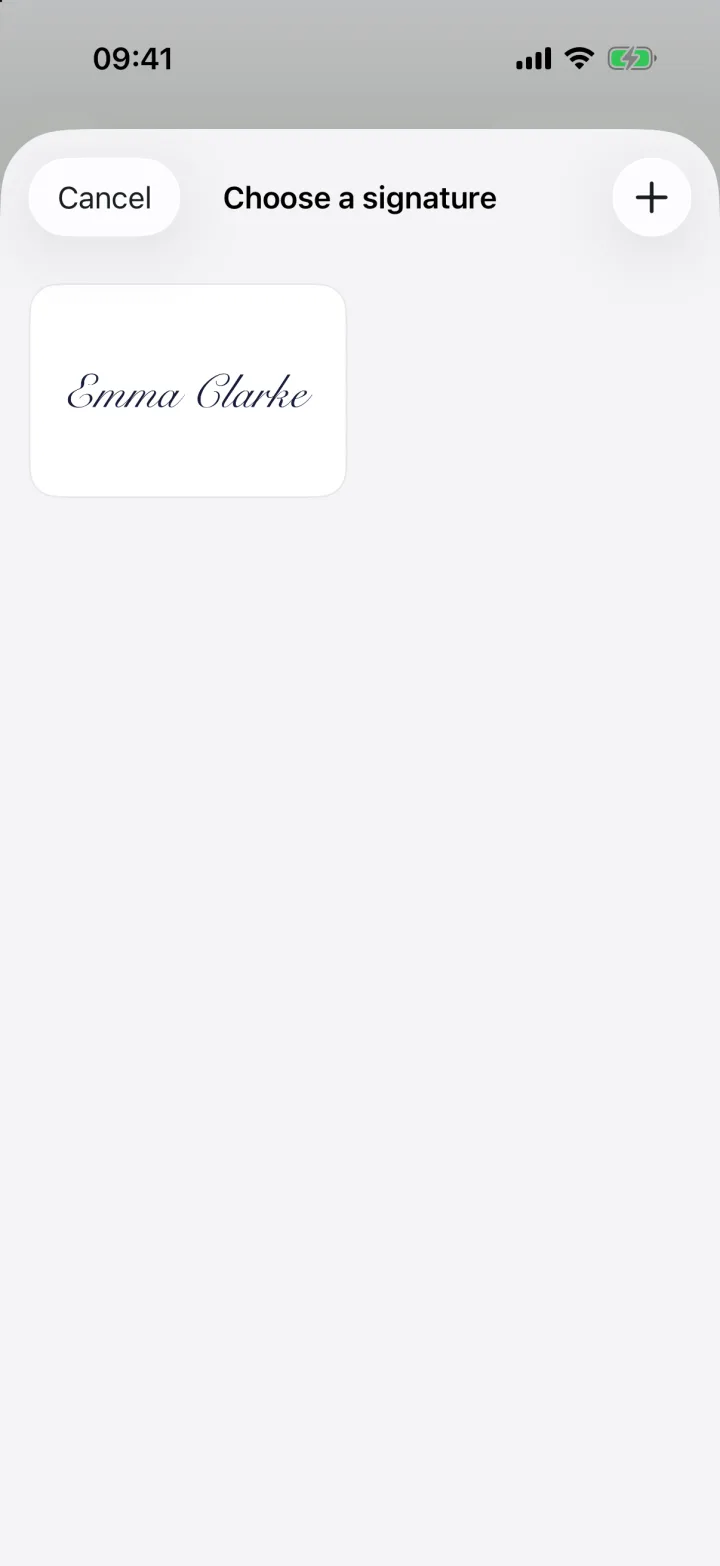
Add your initials
Tap +, then Form field > Initials, and place the field where the page asks for initials. Tap it to open Choose a signature, then pick your saved initials, or tap + to draw or type them. eSign keeps them with your signatures. Add one on every page that needs it.
- 5
Share the PDF
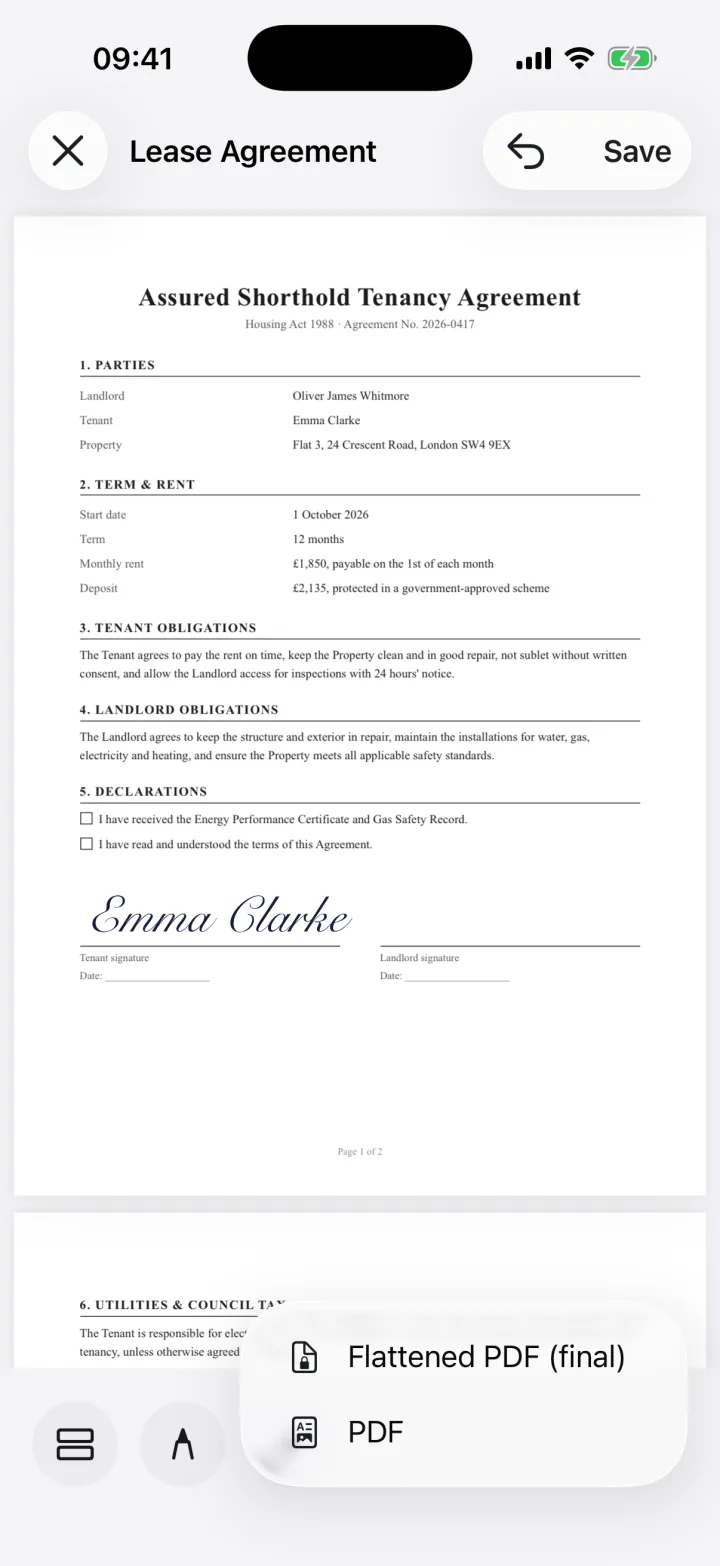
Tap Share and choose PDF, or Flattened PDF so the text, date and initials are locked into the page. Send it by Mail or Messages, or save it to Files.
The built-in way: Markup
Your iPhone can add text to a PDF without another app. Open the PDF in Files or Mail, tap Markup, then tap + and Add Text (or Add Text Form Box on a form). Type in the box and use the tools to change the font, size and color.
Markup has no date field, so you type the date by hand. For initials, Apple lets you create more than one signature and label one as initials, then add it with Add Signature.
When Markup is enough, and when it isn't
- One page, one line of text, one signature: Markup is fine
- Initials on every page of a lease or contract: an Initials field you place per page is quicker
- A date in a set format, like Nov 9, 2026 or 11/9/26: eSign's date picker writes it for you
- A final copy nobody can change: share it as a Flattened PDF
Text or a form field?
Use Text for free notes anywhere on the page, like a correction or an address in a margin. Use a form field when the page has a blank to fill: form fields count toward the filled progress bar. For a whole form, see the guide to filling out a PDF form on iPhone.
Common questions
How do I add today's date to a PDF on iPhone?
In eSign, tap +, then Form field > Date, and drag the field into place. Tap it, keep today's date in the picker, choose a format and tap Use this date. In Markup you type the date into a text box instead.
How do I initial every page of a PDF on iPhone?
Add an Initials field on each page that needs one and tap it to place your saved initials. You create your initials once by drawing or typing them, and eSign keeps them for next time.
Can I change the font and color of text I add?
Yes. When you add Text in eSign you can pick the font, bold or italic, a size from 6 to 96 pt and a color. Tap the text again, or tap the pencil, to edit it.
Does it work on PDFs without fillable fields?
Yes. You place the text, date and initials yourself, so flat PDFs, scans and photos of paper forms work too.
Is it free?
Free to try, Pro unlocks unlimited signing. You can sign and share your first 2 documents for free.
Keep reading
All posts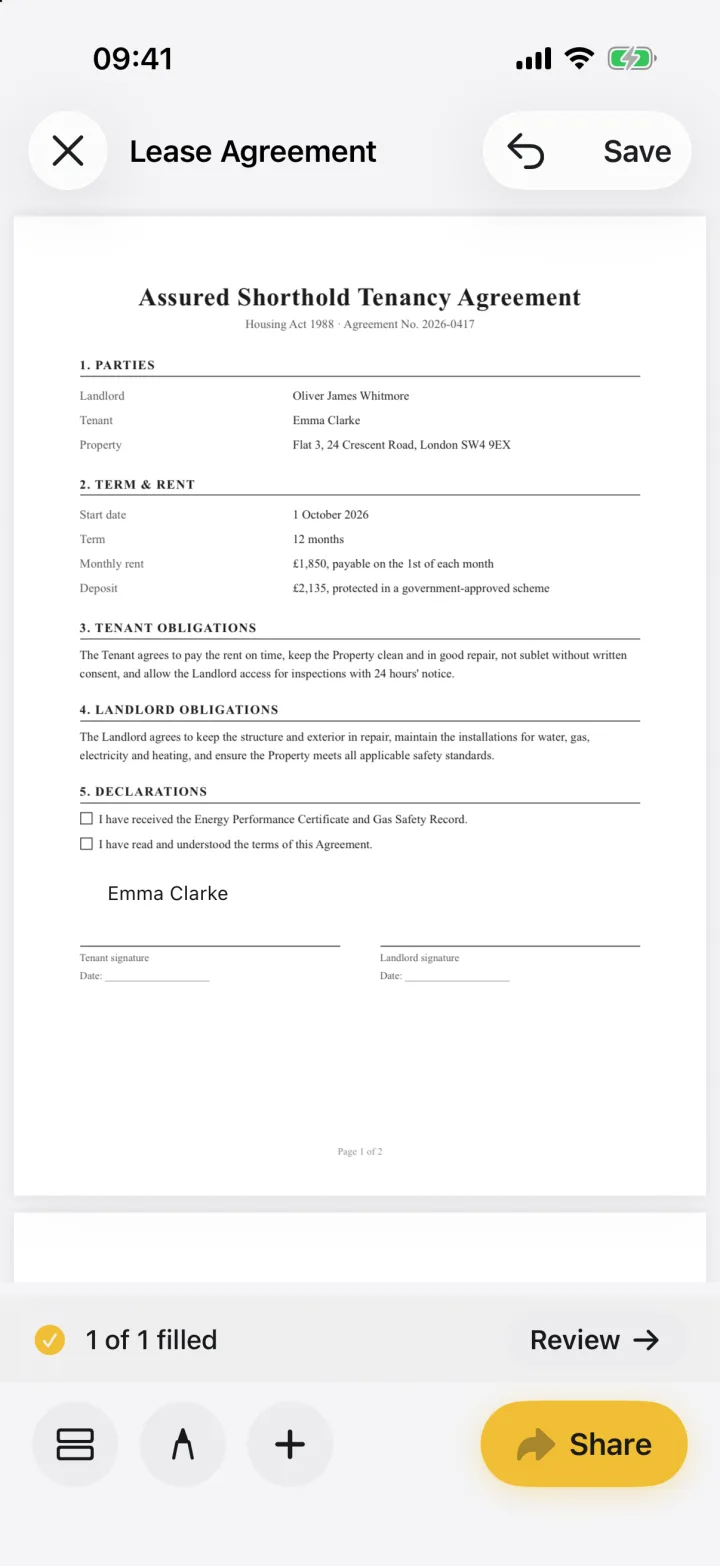 Guide
How to Fill Out a PDF Form on iPhone
Fill in any PDF form on your iPhone: add text, dates, checkboxes, initials and signatures where they're needed, then send it back. With screenshots.2 min readRead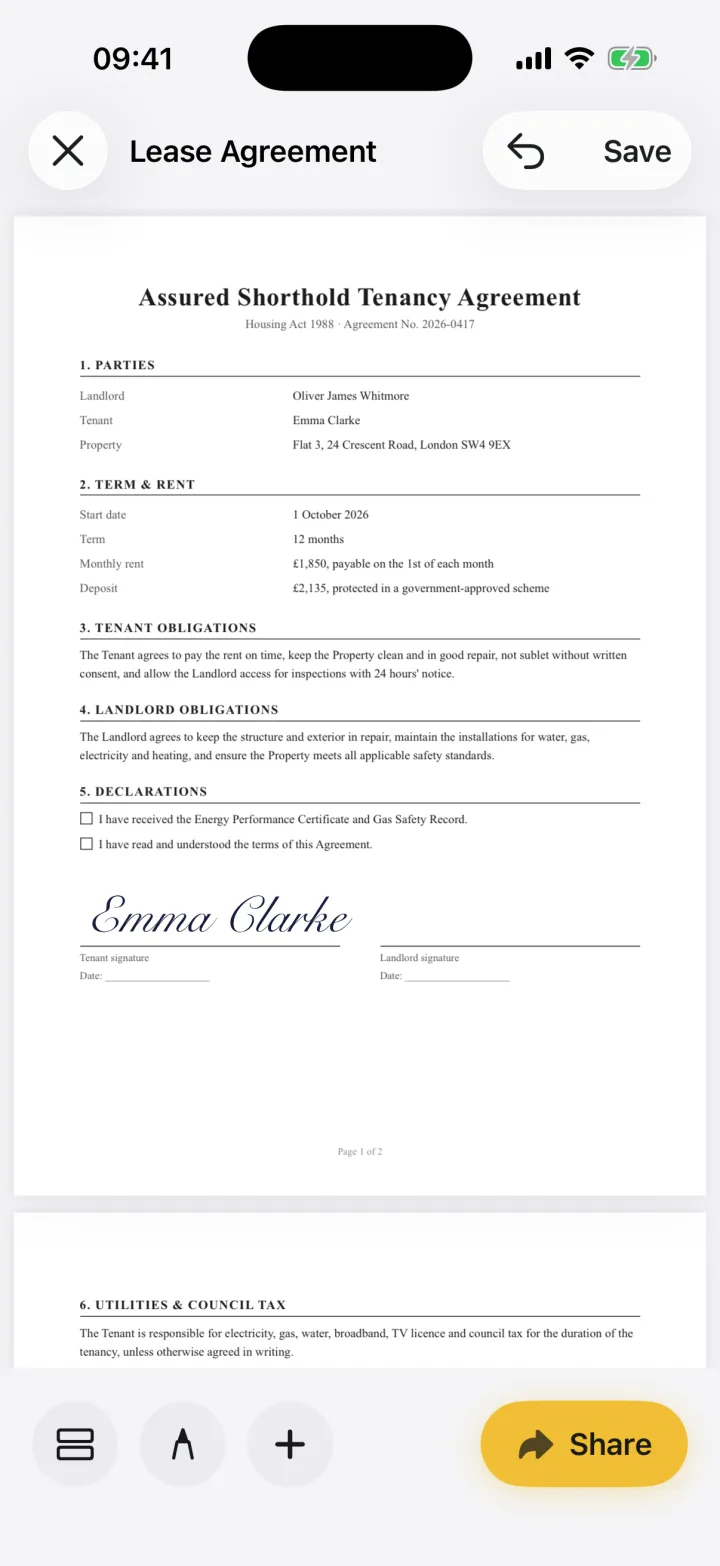 Guide
How to Sign a PDF on iPhone (Free, No Printing)
Sign any PDF on your iPhone in under a minute: open the file, add your signature on the line and send it back. Step-by-step with screenshots.3 min readRead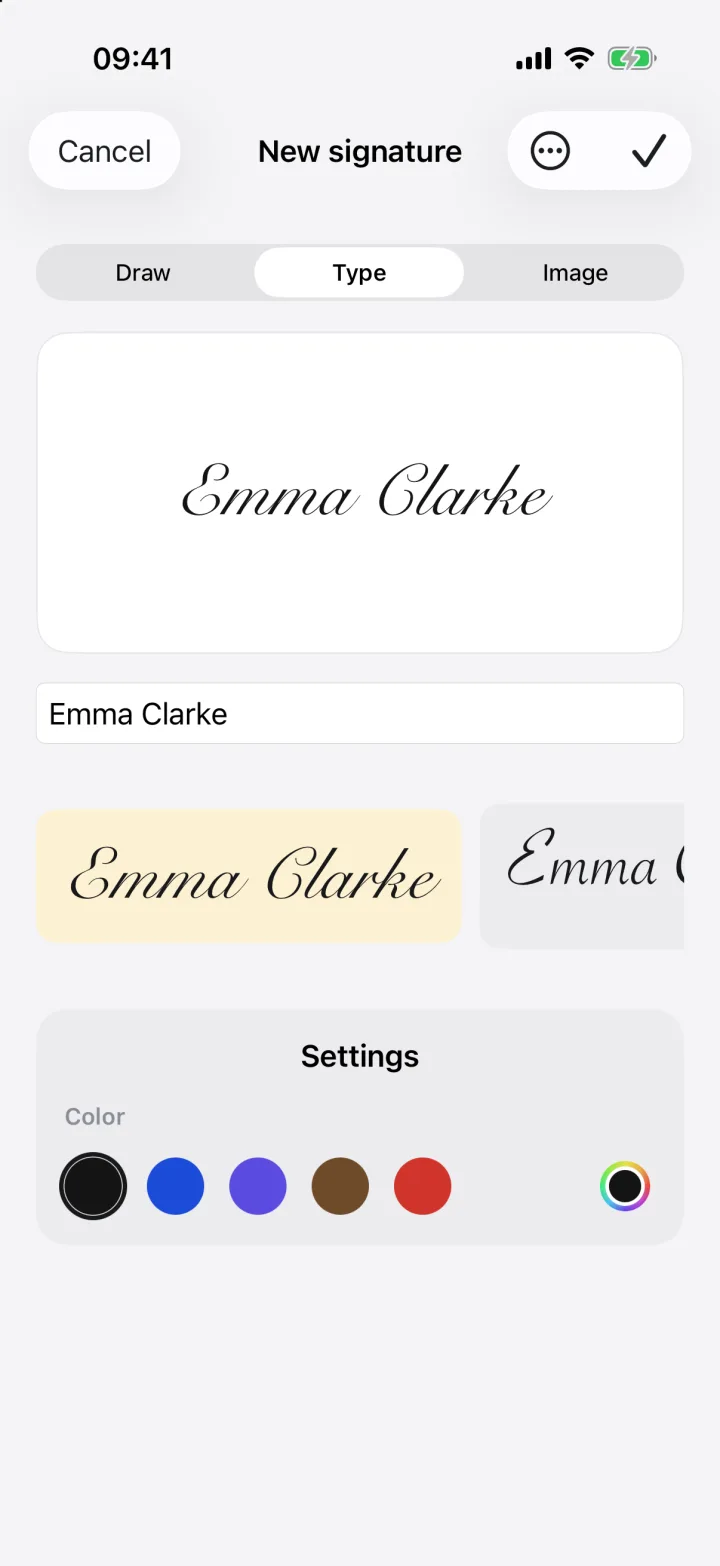 Guide
Signature Maker: Create Your Signature on iPhone
Make a signature on your iPhone by drawing it, typing your name in a handwriting font, or scanning your real signature from paper. Then sign anything.2 min readRead
Ready when the
next one lands.
Free to try · No account needed