How to fill out a PDF form
on your iPhone.
Rental applications, school permission slips, onboarding paperwork: forms always seem to arrive when you're away from a desk. eSign lets you fill them in properly on your phone, even when the PDF has no fillable fields.
Updated By Alina Bohuslavska, maker of eSign
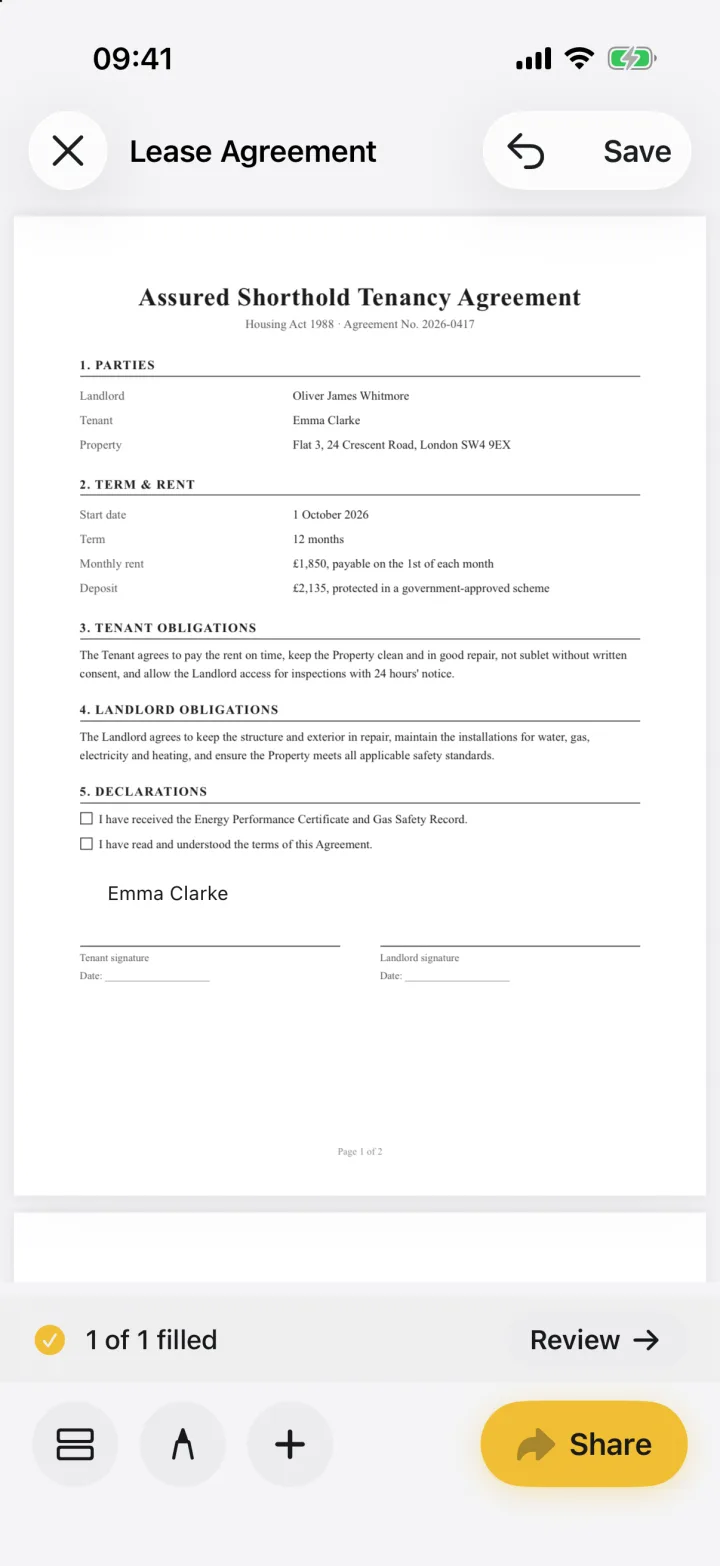

Open the form in eSign, tap +, then Form field and choose Text, Date, Checkbox, Initials or Signature. Tap where each field goes, fill it in, and use Next field to move through the form. Share it as a PDF when it says all fields are filled.
Fill a form in four steps
- 1
Open the form and tap +
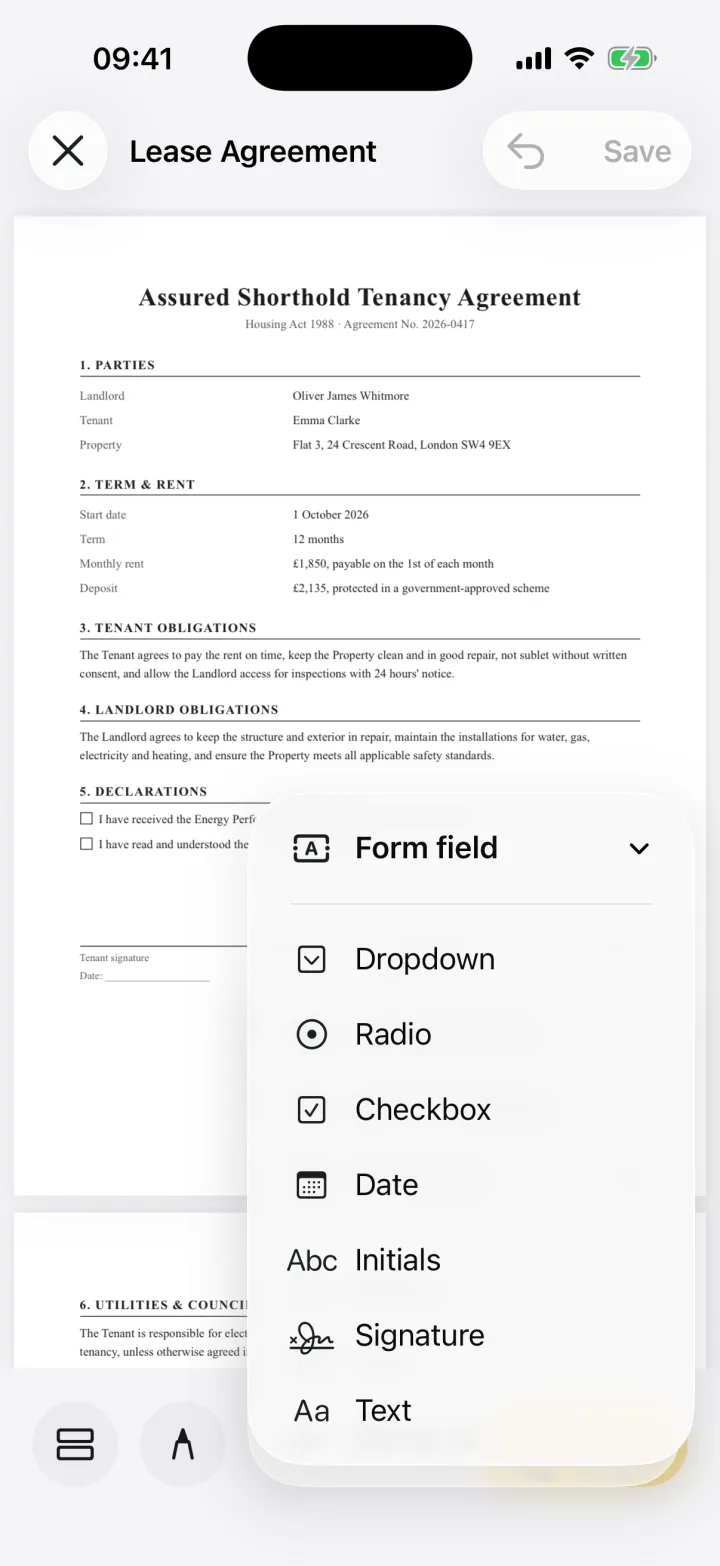
Open the PDF, photo or scan in eSign. Tap + and choose Form field to see the field types.
- 2
Place a field where it belongs
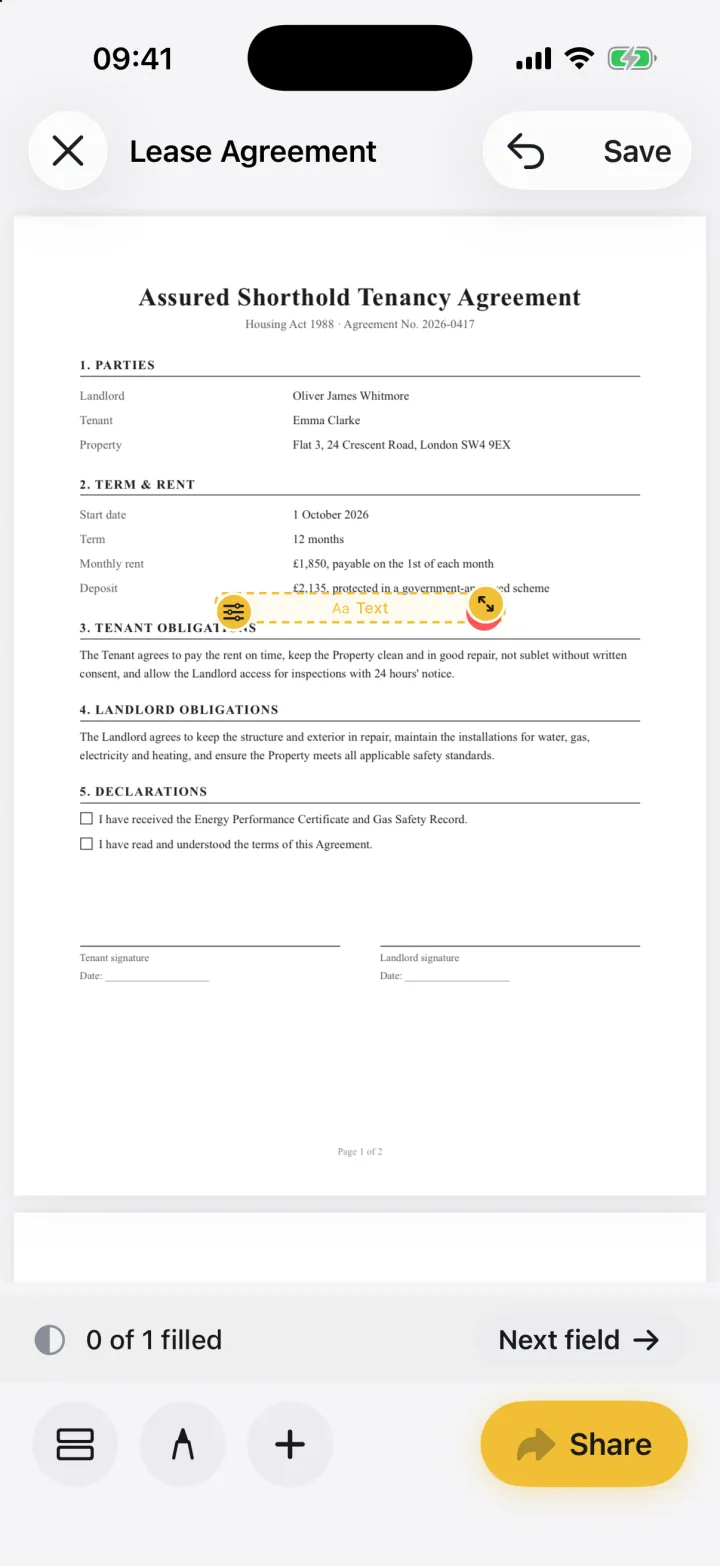
Pick Text, Date, Checkbox, Radio, Dropdown, Initials or Signature. Drag the field onto the blank and resize it with the corner handle. eSign keeps count of how many fields are left.
- 3
Fill it in, or autofill it
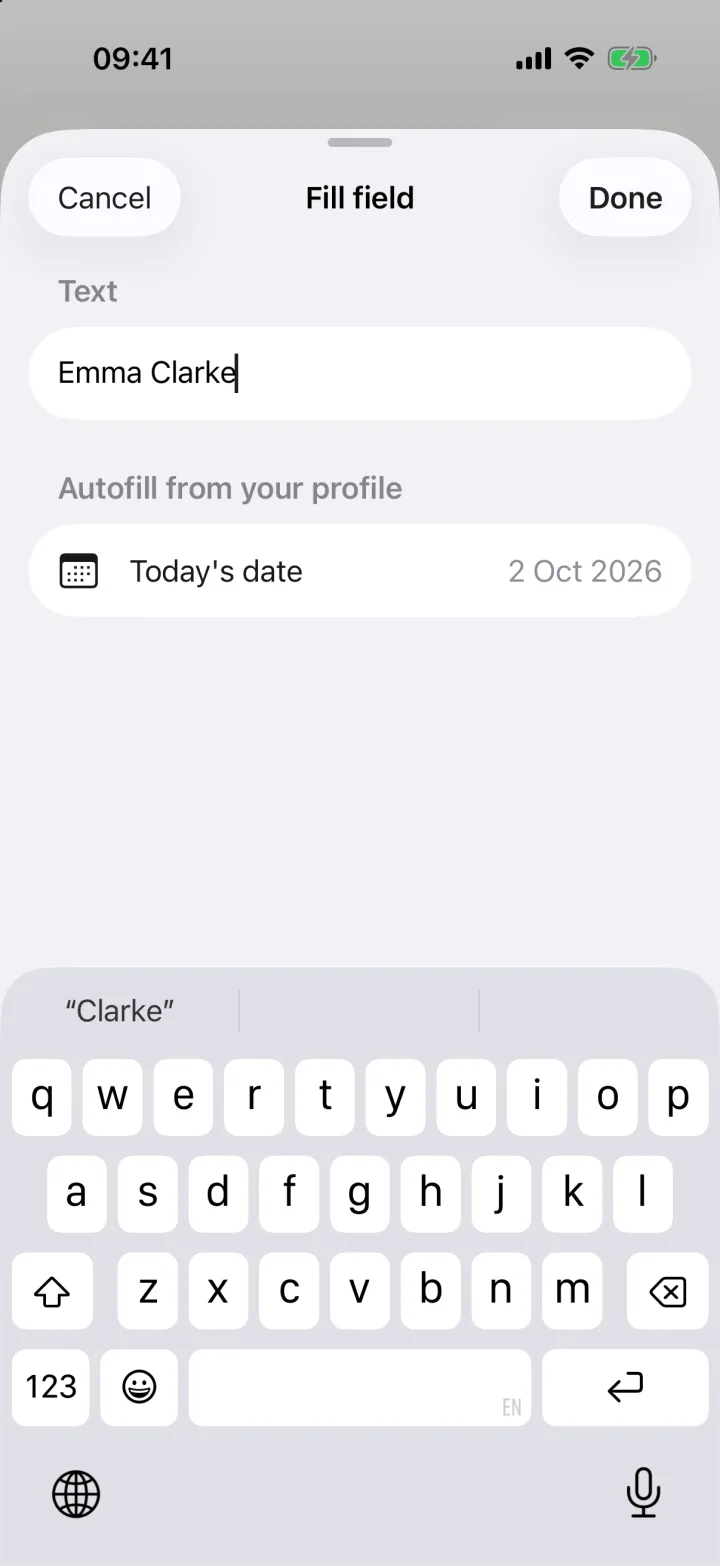
Tap a field to type. Things you enter often, like your name, address or today's date, can come from your autofill profile with one tap.
- 4
Review and send
Tap Next field to jump through the form until it shows every field filled, then tap Review and Share to send a PDF.
Fill forms that don't have fillable fields
Most PDFs people send are flat: a scanned page or an export with lines to write on. You can't tap into them in most viewers. In eSign you place your own fields exactly where the blanks are, so any page becomes fillable.
Reuse the same form
If you fill the same form every month, like a timesheet or an invoice, save the field layout as a template. Next time, apply the template and only the values change.
Field types you can add
- Text for names, addresses and anything else typed
- Date, with today's date one tap away
- Checkbox and radio buttons for yes/no and multiple choice
- Dropdown for a fixed list of answers
- Initials and signature fields for every page that needs them
Common questions
Can I fill a PDF form on iPhone if it isn't fillable?
Yes. eSign lets you add your own text, date, checkbox and signature fields anywhere on the page, so flat PDFs and scans can be filled too.
Can I save my details so I don't retype them?
Yes. Save your name, address and other details in your autofill profile and fill matching fields with one tap.
Will the filled form look right on a computer?
Yes. You send a standard PDF. Choose Flattened PDF if you want the entries locked into the page so they can't be changed.
Keep reading
Ready when the
next one lands.
Free to try · No account needed