Make your signature
three ways.
Your signature should look like you, not like a mouse scribble. eSign gives you three ways to create one and saves it, so it's ready the next time something needs signing.
Updated By Alina Bohuslavska, maker of eSign
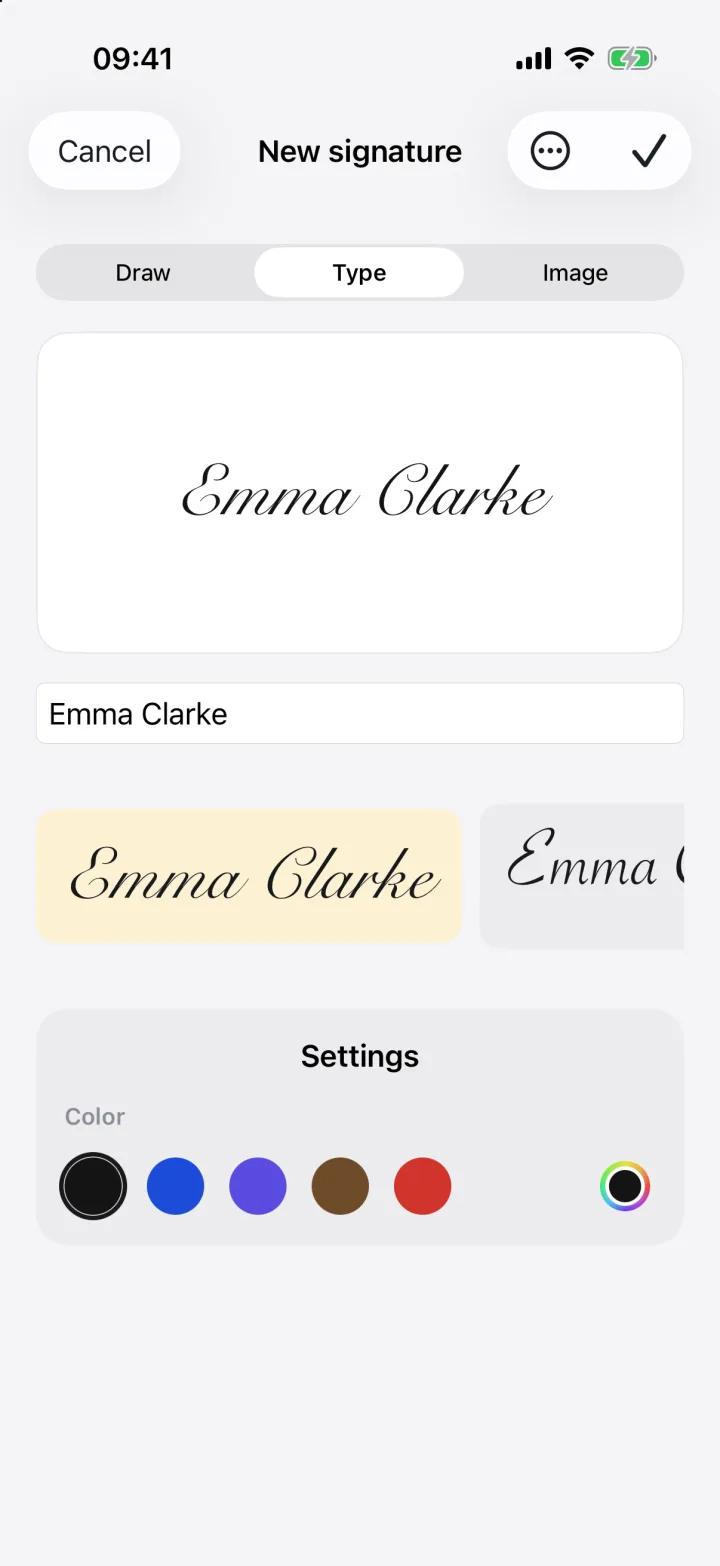
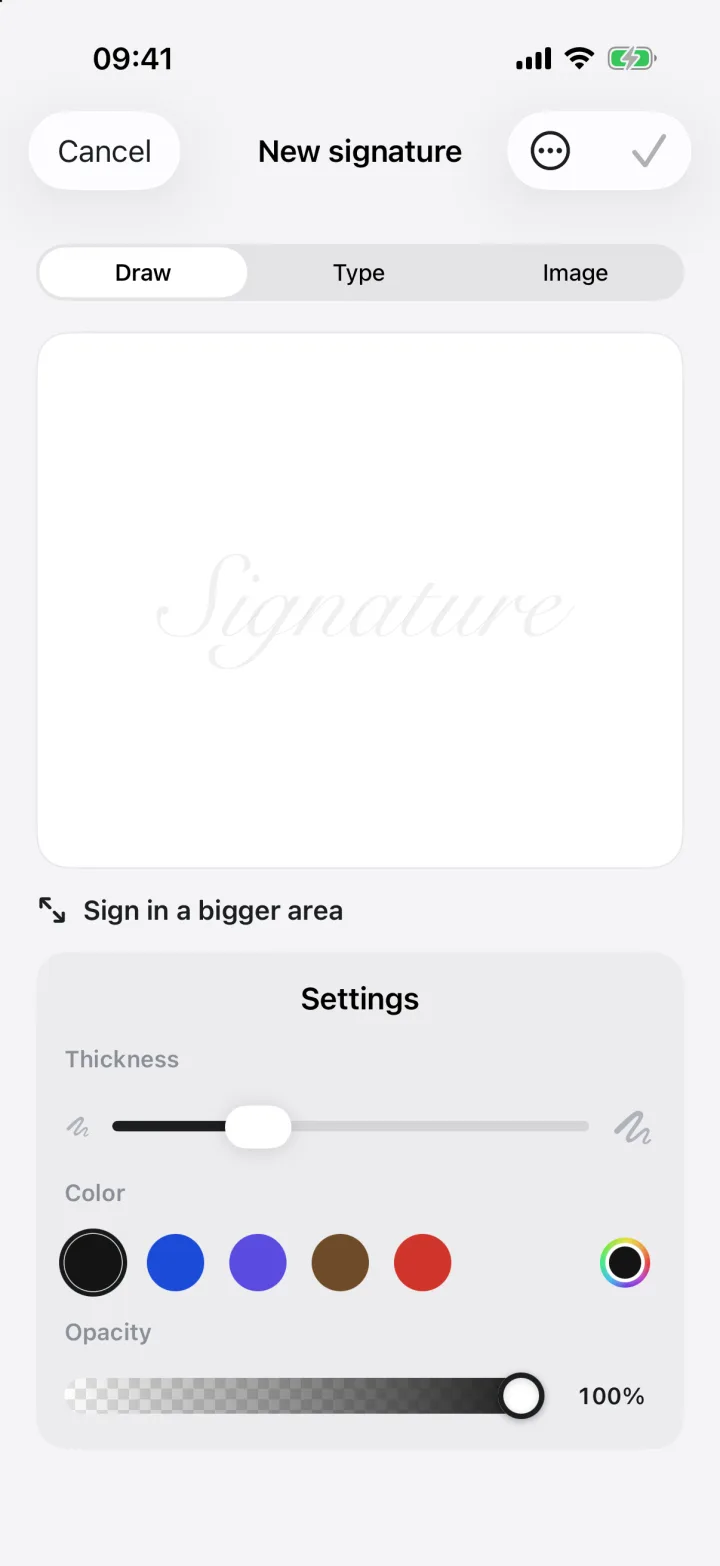
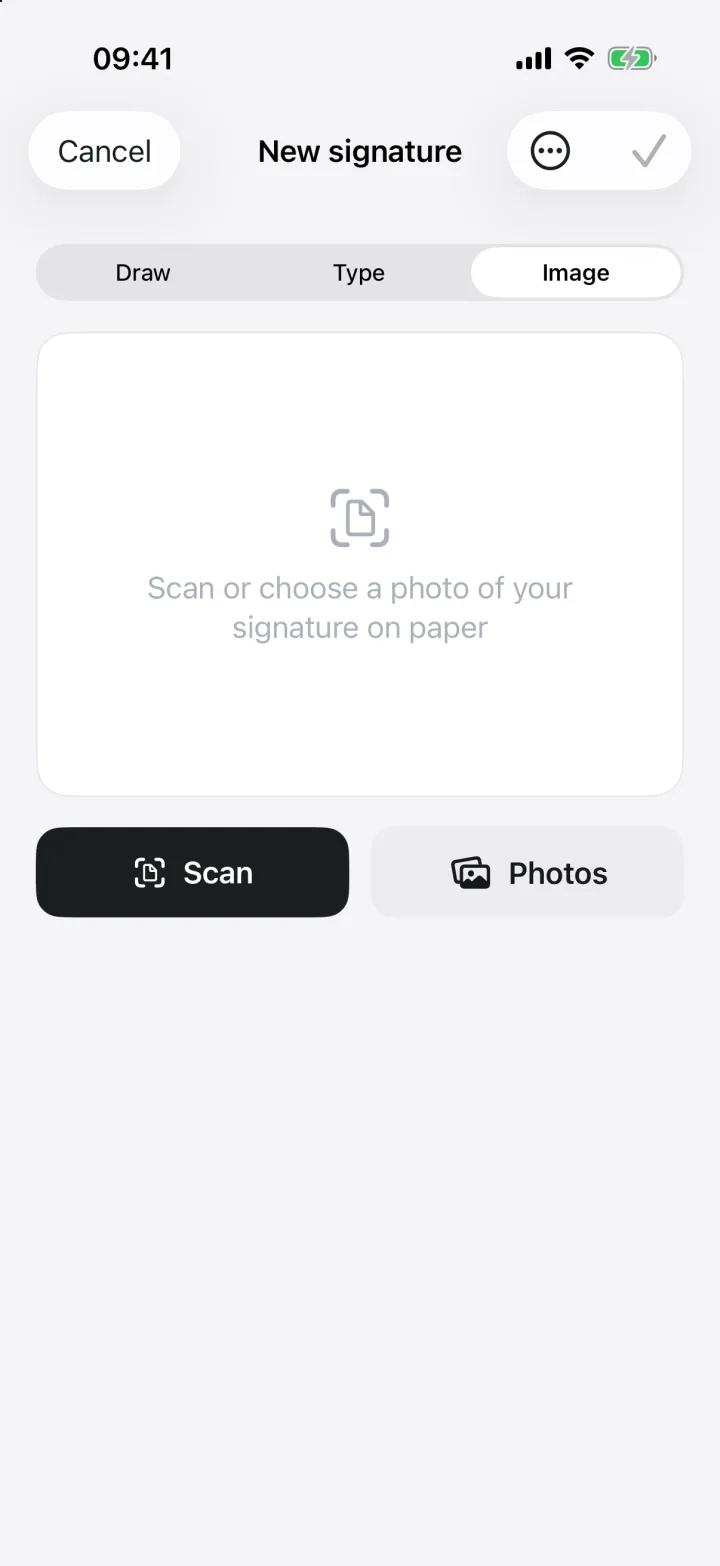
In eSign, tap New signature and choose Draw, Type or Image. Draw it with your finger (turn the phone sideways for more room), type your name and pick a handwriting style, or scan your signature from paper and eSign removes the background.
Three ways to make a signature
- 1
Draw it
Sign with your finger or Apple Pencil. Tap Sign in a bigger area to turn the phone sideways for a full-screen pad, and adjust thickness, colour and opacity.
- 2
Type it
Type your name and choose from handwriting styles. Pick black, blue or another ink colour to match your pen.
- 3
Scan it from paper
Sign a sheet of paper, then scan or photograph it. eSign lifts the signature off the page and removes the background, so it looks like real ink on any document.
- 4
Use it anywhere
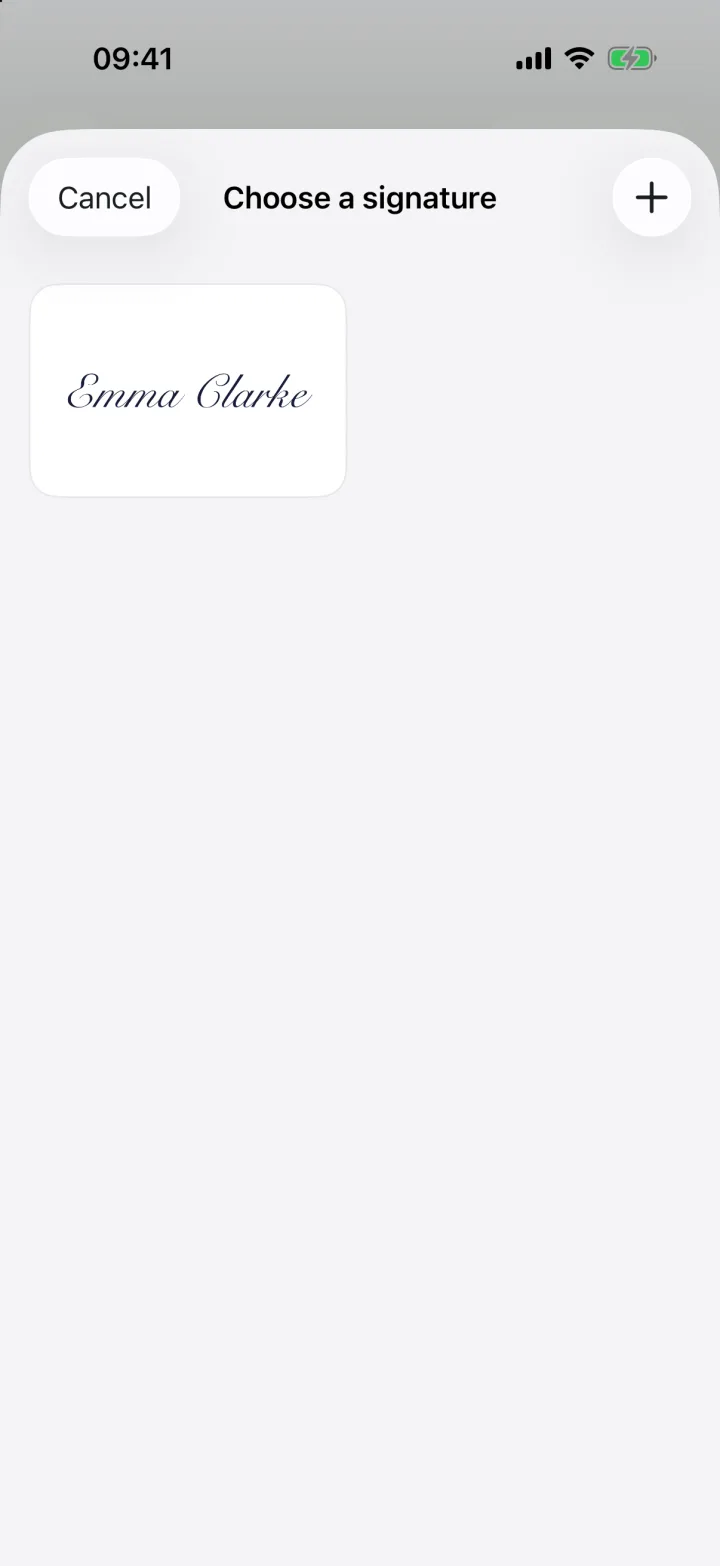
Your signatures are saved in the app. When you add a signature to a document, just pick the one you want.
Which method looks most real?
Scanning your signature from paper gives the most authentic result, because it's your actual handwriting. Drawing works well with Apple Pencil or the landscape pad. Typing is fastest and always neat.
Is my signature stored online?
No. Signatures are saved only on your device. You can lock documents with Face ID, and nothing is uploaded to a server.
Common questions
How do I create a signature on my iPhone?
In eSign, tap New signature, then draw it with your finger, type your name in a handwriting font, or scan your signature from paper.
Can I make a transparent signature from a photo?
Yes. Choose Image, scan or pick a photo of your signature, and eSign removes the background so only the ink remains.
Can I have more than one signature?
Yes. Save as many as you like, for example your full signature and your initials.
Keep reading
Ready when the
next one lands.
Free to try · No account needed